
How to Create, Join and Manage a Guild in Stack A Butter Squishy
Last updated:
Create a guild for your friends or join an existing one in Stack A Butter Squishy. The Guilds menu also contains invitations, identity settings and member controls.
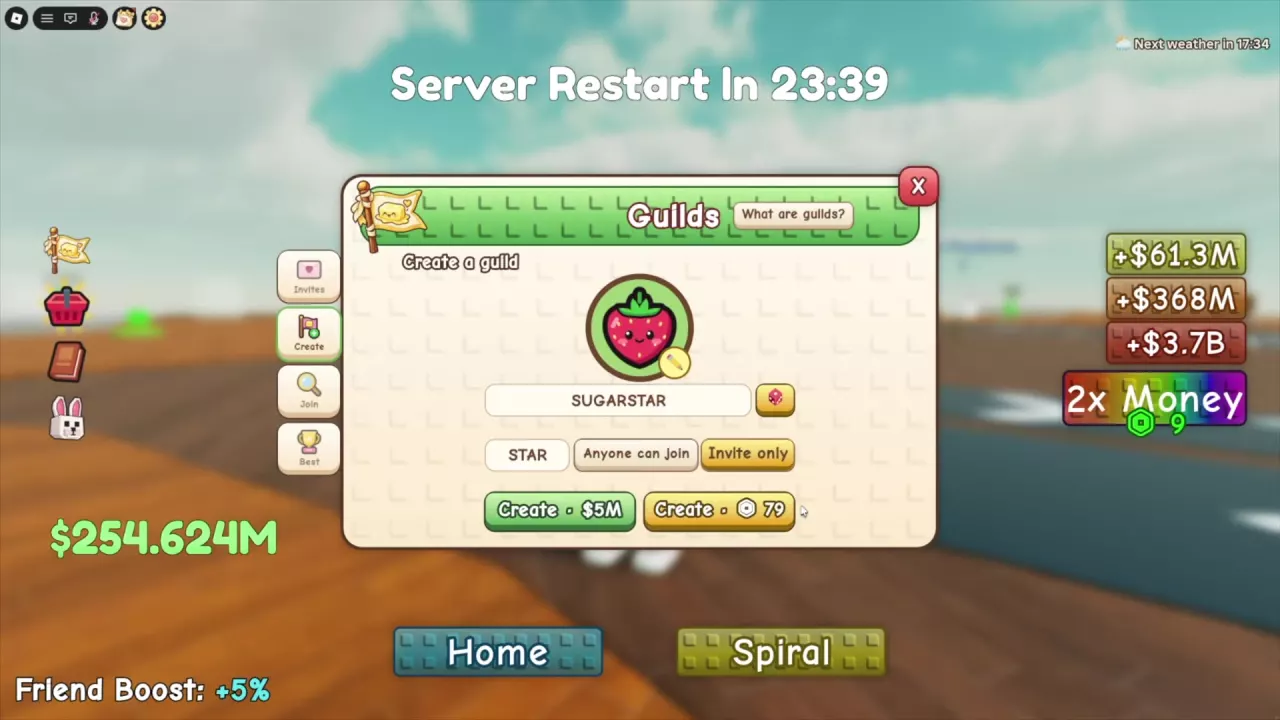
Create a Guild and Fix a Taken TAG
- Open the Guilds menu using the flag icon, then select Create.
- Enter a guild name, choose an icon and enter a unique TAG of 3–5 characters.
- Choose Anyone can join for public joining or Invite only to bring in players by invitation.
- Select Create · $5M to pay 5 million cash, or Create · 79 Robux to use the Robux option.
If the game says your TAG is already taken, replace it with an unused 3–5-character TAG and try again. Once the guild is created, its creator appears as Captain on the Guild page.
Join, Invite and Leave a Guild
Open Guilds → Join to access public guild joining. If a guild uses Invite only, you need an invitation; open Invites in the Guilds menu to see your invitations.
To invite someone to your guild:
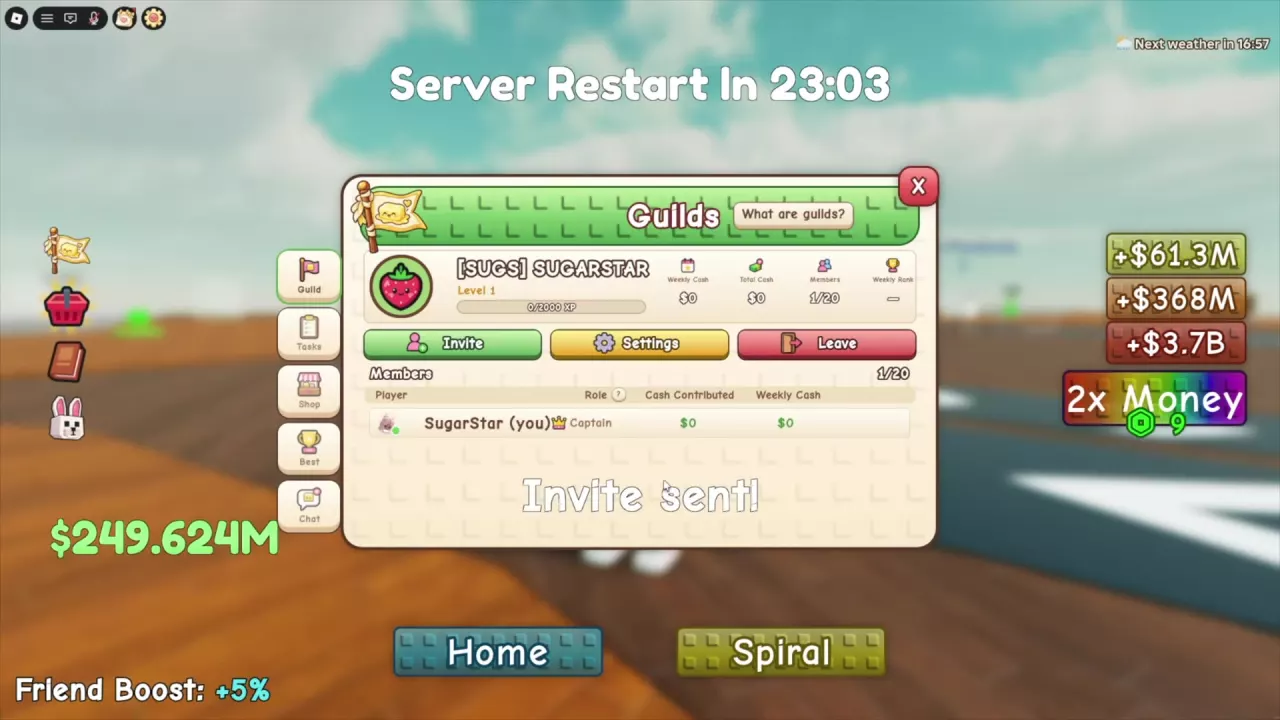
- Open your Guild page and select Invite.
- Enter the player’s username or choose a player from the invitation list.
- Select Invite and look for the Invite sent! message.
Joined players appear in the member roster. To leave your guild, open its Guild page and select Leave.
Change Joining Access and Guild Identity
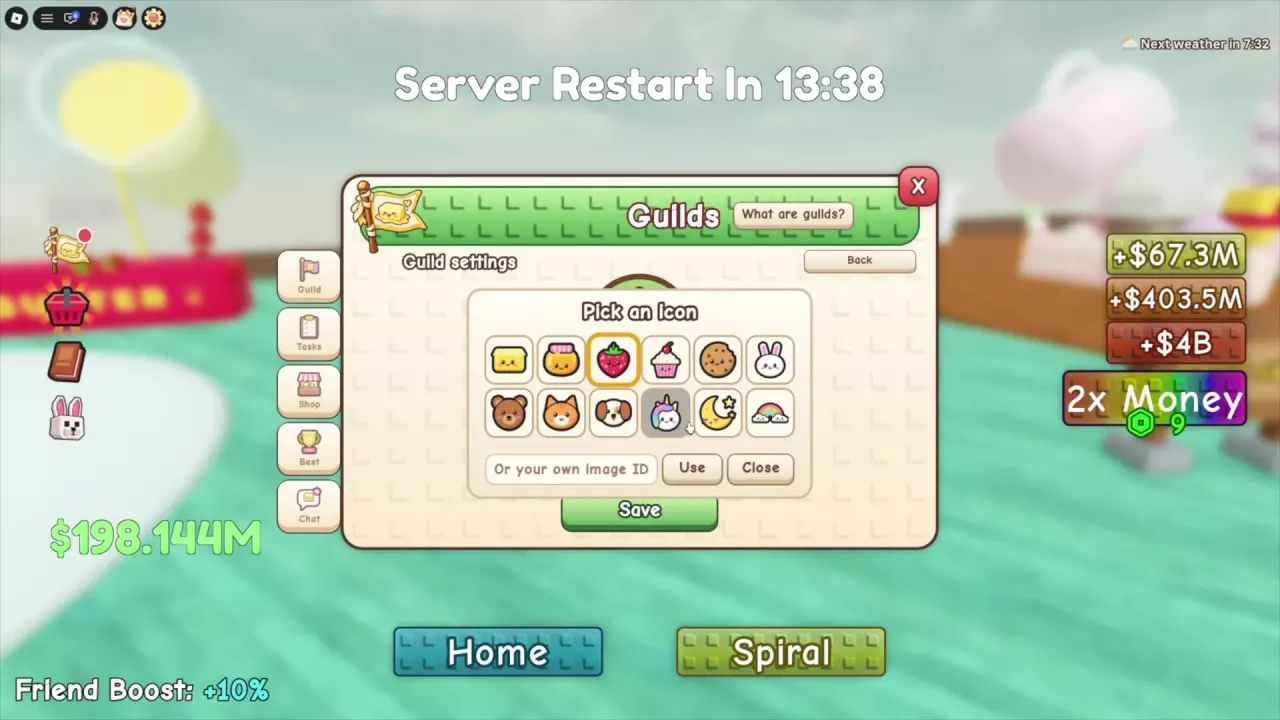
Open Guild → Settings to edit the guild name, TAG, icon or joining mode. Select Anyone can join to open the guild to public joining, or Invite only to use invitations. Select Save to apply your changes.
To change the icon, open Pick an Icon and choose a preset. Options include butter, a jar, strawberry, cupcake, cookie, rabbit, bear, fox, dog, unicorn, moon and stars, and rainbow. For a custom icon, enter its Image ID, select Use, then save the settings.
Guild Roles and Member Management
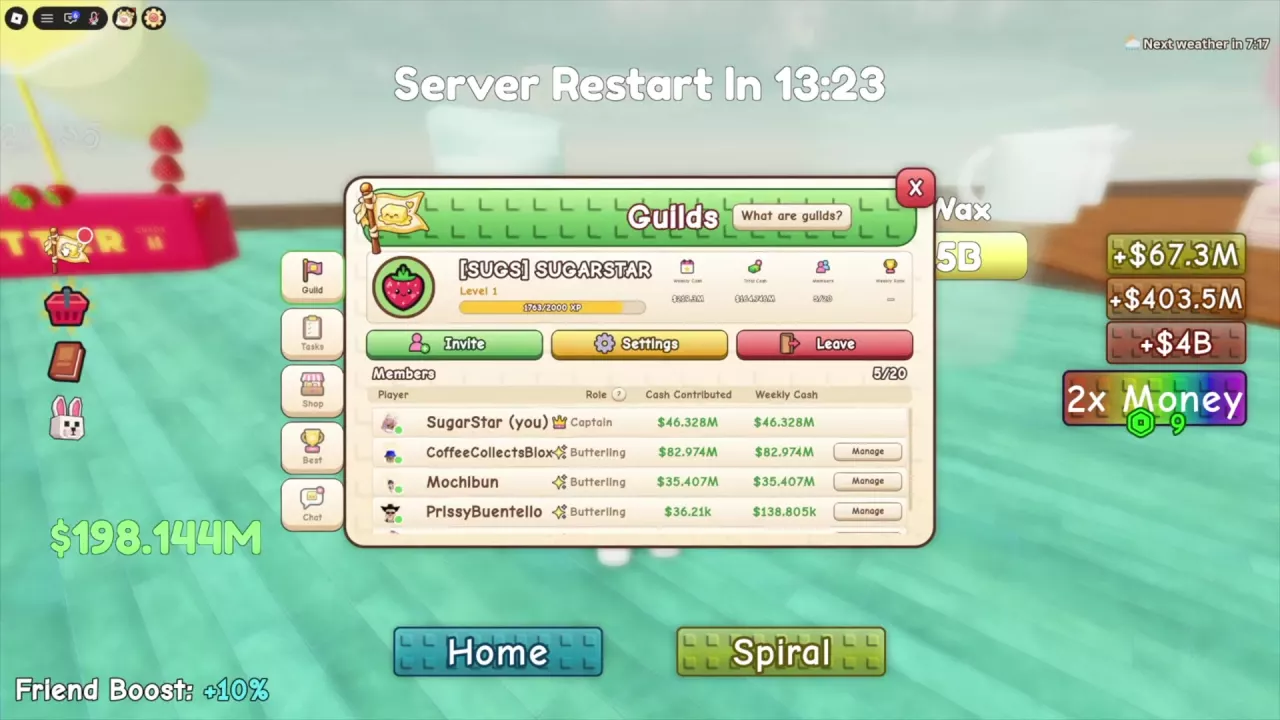
The member roster displays each player’s role. The creator is the Captain, and members can also have the Vice Captain or Butterling role. Select Manage beside another member’s roster entry to open member management.
Guild levels give members cash and luck benefits. See the guild overview for progression and member benefits.
Related guides
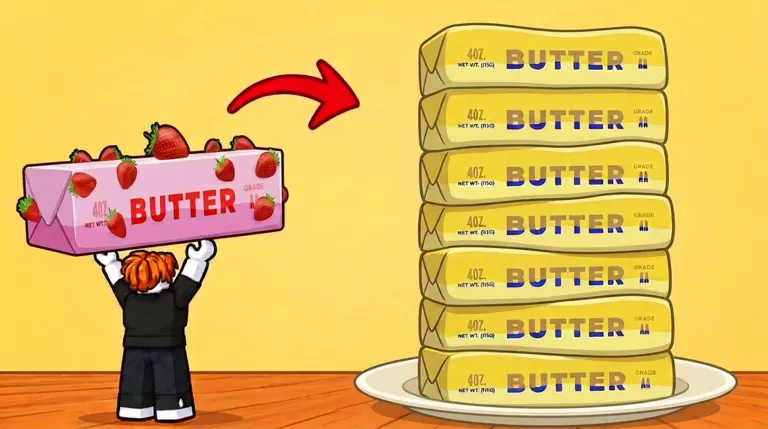
Stack A Butter Squishy Guilds: XP and Member Benefits
Learn how Stack A Butter Squishy guilds earn XP, unlock member benefits, spend Guild Points, and compete with Weekly Cash.
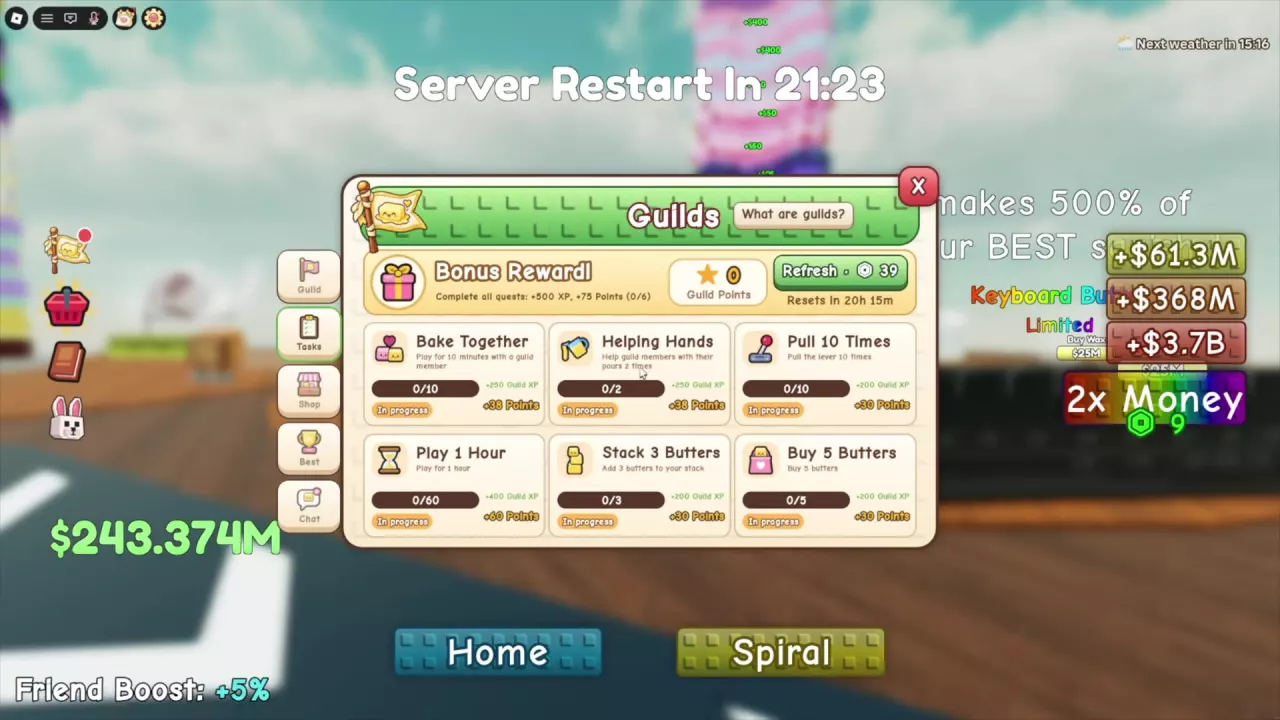
Stack A Butter Squishy Guild Tasks and Guild Points
Complete Stack A Butter Squishy guild tasks, earn Guild Points and XP, and learn how to finish Helping Hands.
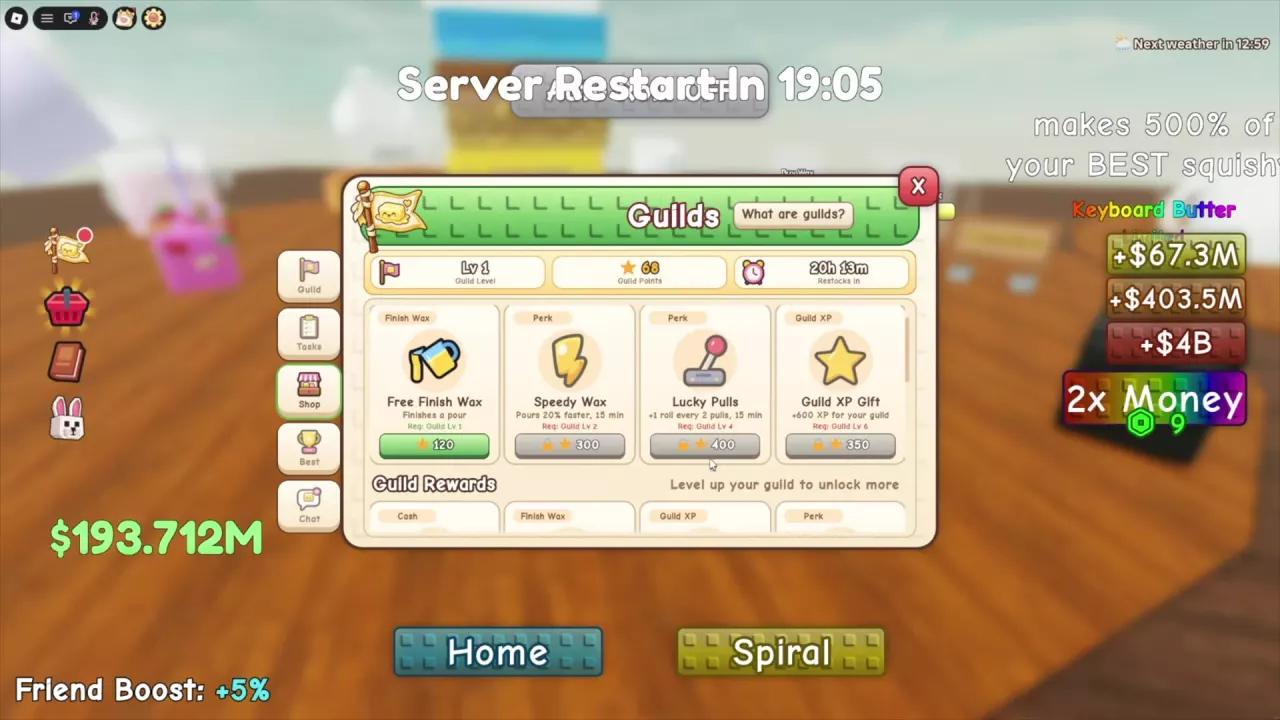
Stack A Butter Squishy Guild Shop Rewards, Costs and What to Buy
Compare Stack A Butter Squishy Guild Shop rewards, point costs, level requirements, and boost durations. Choose cash, waxing, rolling, Golden boosts, or XP.