Build Toward 100 Butters
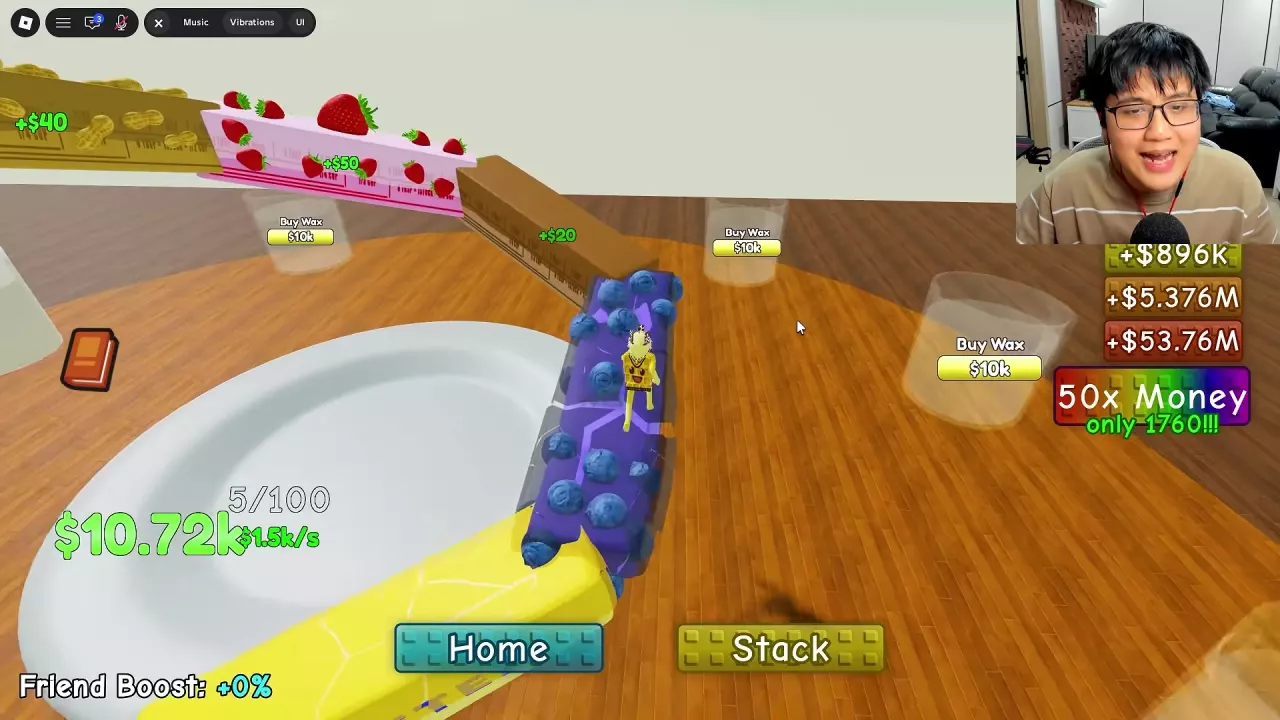
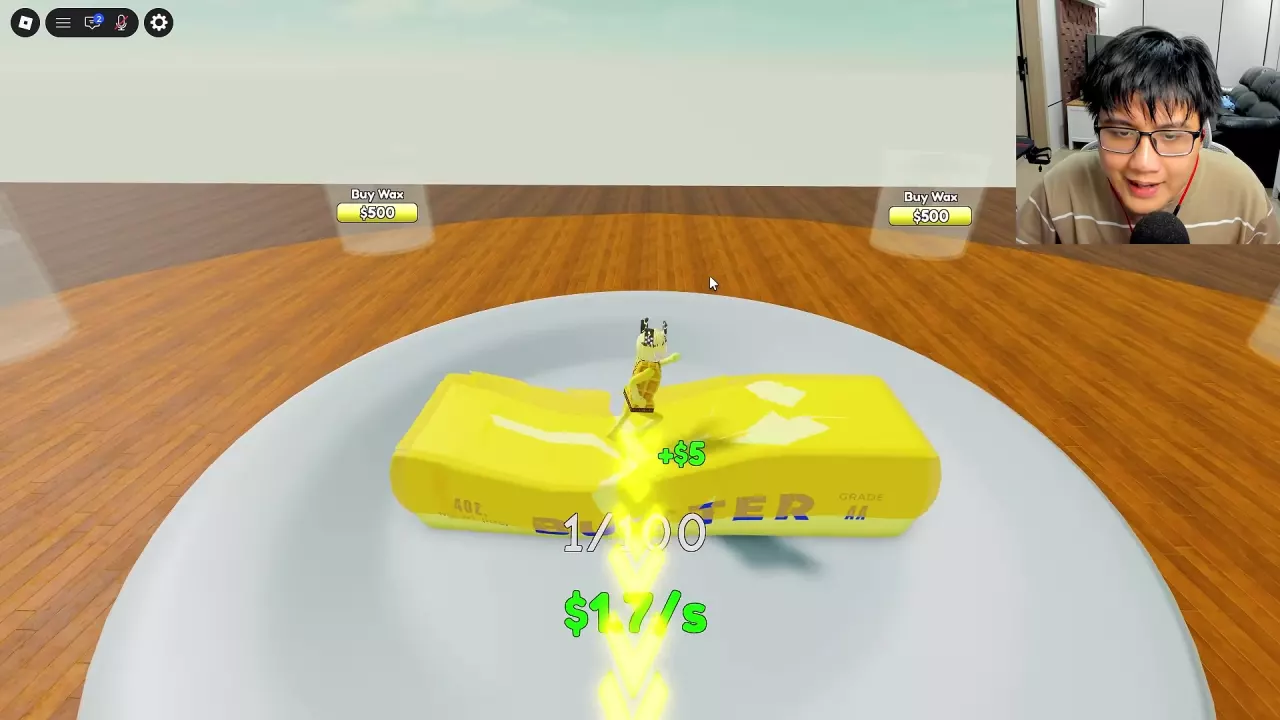
Your stack holds 100 butters, and the counter tracks individual pieces rather than unique types. Two Salted Butters count as two entries. A purchased butter joins the count after its waxing finishes and it jumps onto your plate.
- Carry a squishy to an empty, purchased Wax Station.
- Use Place Squishy to start its pour.
- Let waxing finish so the butter automatically joins your stack.
- Repeat, using other available stations to run separate pours at the same time.
At 50/100, you need 50 more completed butters to reach 100. Butters still being processed have not yet joined that count.
If your goal is quantity, favor purchases you can afford and shorter wax waits. Expensive collectibles can tie up your cash and processing stations for longer. Each station handles one butter at a time, so additional stations let you work on several pieces together. Waxing also continues while you are out of the game.
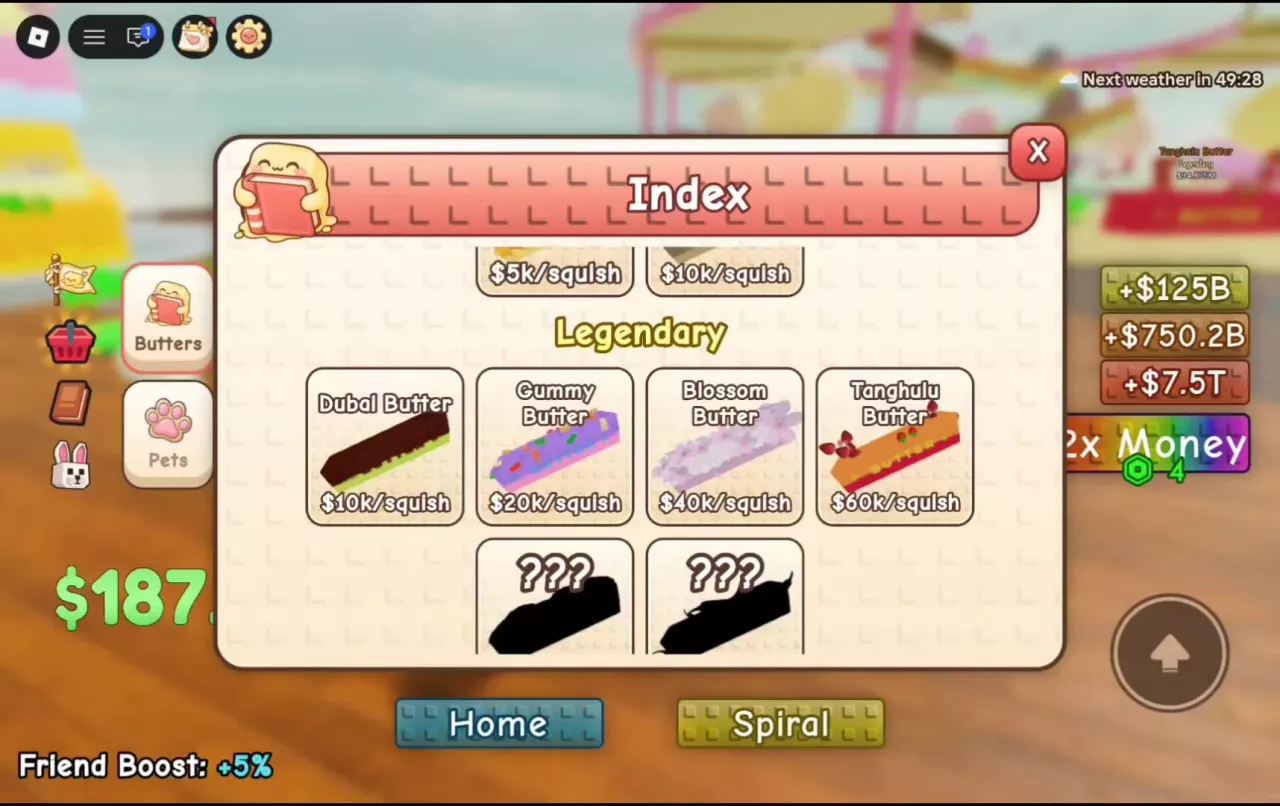
Compare purchase prices in the Butter Index. For processing controls and speed options, use the waxing guide; for expansion prices, see Wax Station costs and Floor 2 requirements.
Move a Butter in Edit Stack
- Approach your plate and activate Your Stack → Edit Stack.
- Choose Move, then select the butter you want to reposition. Its details show its position and displayed income.
- Use Move Up or Move Down, or drag its row to another position.
- Use To Top or To Bottom when those controls are available.
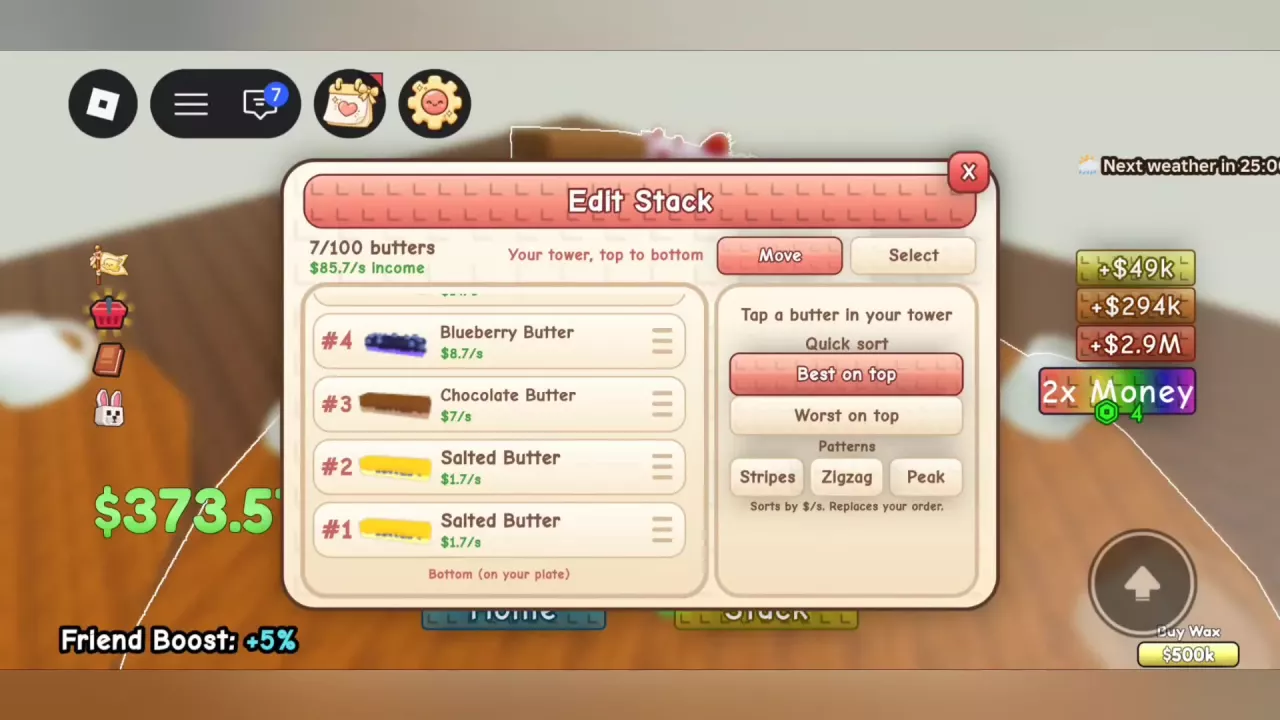
The list runs from the tower’s top to its bottom. Position #1 sits directly on the plate; higher position numbers sit farther up the tower. Move Up becomes unavailable when the selected butter is already at the top.
Put a favorite such as Mozzarella Butter closer to the plate if you want to step on it without climbing the whole tower. Moving changes placement, not the butter’s output or your stack count. If you plan to apply a sorting pattern as well, do that first, then make your individual adjustments: sorting replaces the existing order.
Quick Sort and Pattern Rules
Edit Stack uses each entry’s displayed $/s to determine which butters are best or worst. Choose an arrangement based on where you want those pieces to sit.
| Option | Arrangement | When to choose it |
|---|---|---|
| Best on top | Places the highest-income butters at the top. | Put your strongest earners at the top of the display. |
| Worst on top | Places the lowest-income butters at the top. | Keep stronger earners toward the plate. |
| Stripes | Alternates butter types, with the best at the bottom. | Mix different types through the tower. |
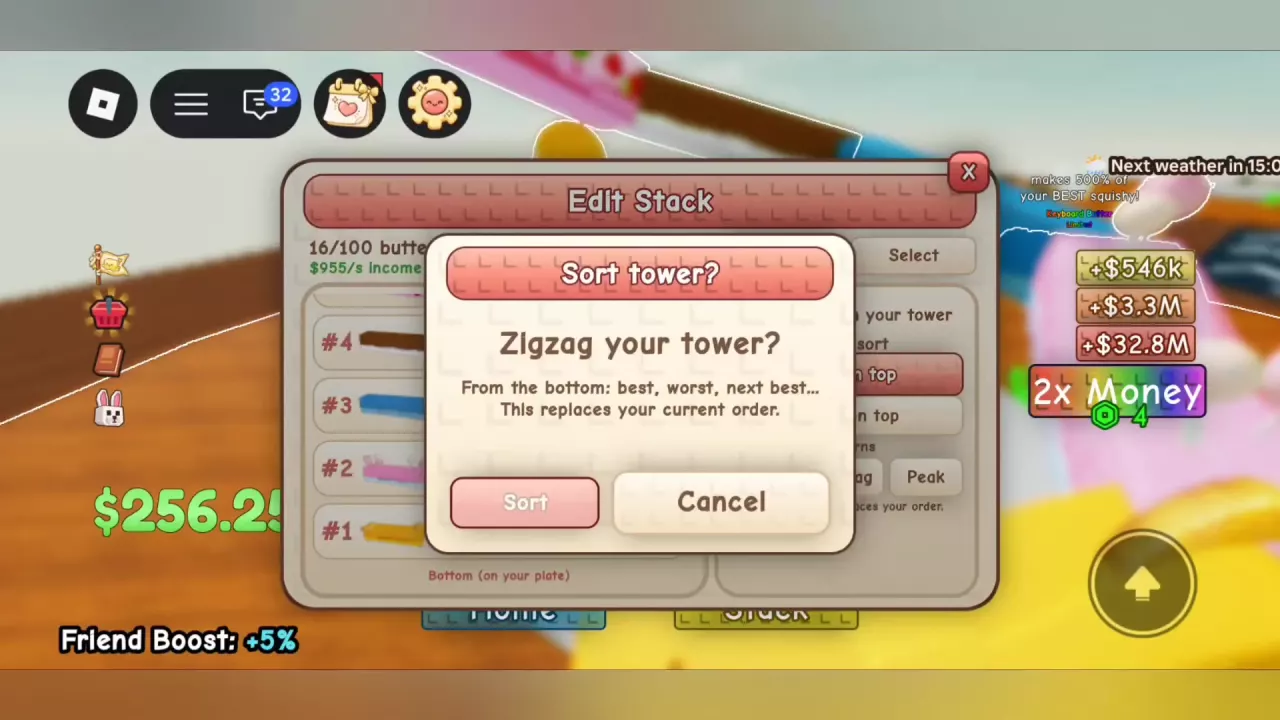
| Zigzag | From the bottom, alternates best, worst, next best, and so on. | Alternate higher- and lower-income entries. |
| Peak | Places the best butters in the middle. | Concentrate your strongest earners around the center. |
To apply an arrangement:
- Open Your Stack → Edit Stack.
- Choose Best on top or Worst on top under Quick sort, or Stripes, Zigzag, or Peak under Patterns.
- Read the confirmation and choose Sort to replace your current order. Choose Cancel to keep it.
- Review the resulting list from tower top to plate bottom.
Sorting does not increase income or add butters. For example, a 16-butter stack displaying $955/s stayed at 16/100 and $955/s after applying Peak; applying Zigzag also left its total at $955/s. Pick a pattern for its arrangement, not an earnings bonus.
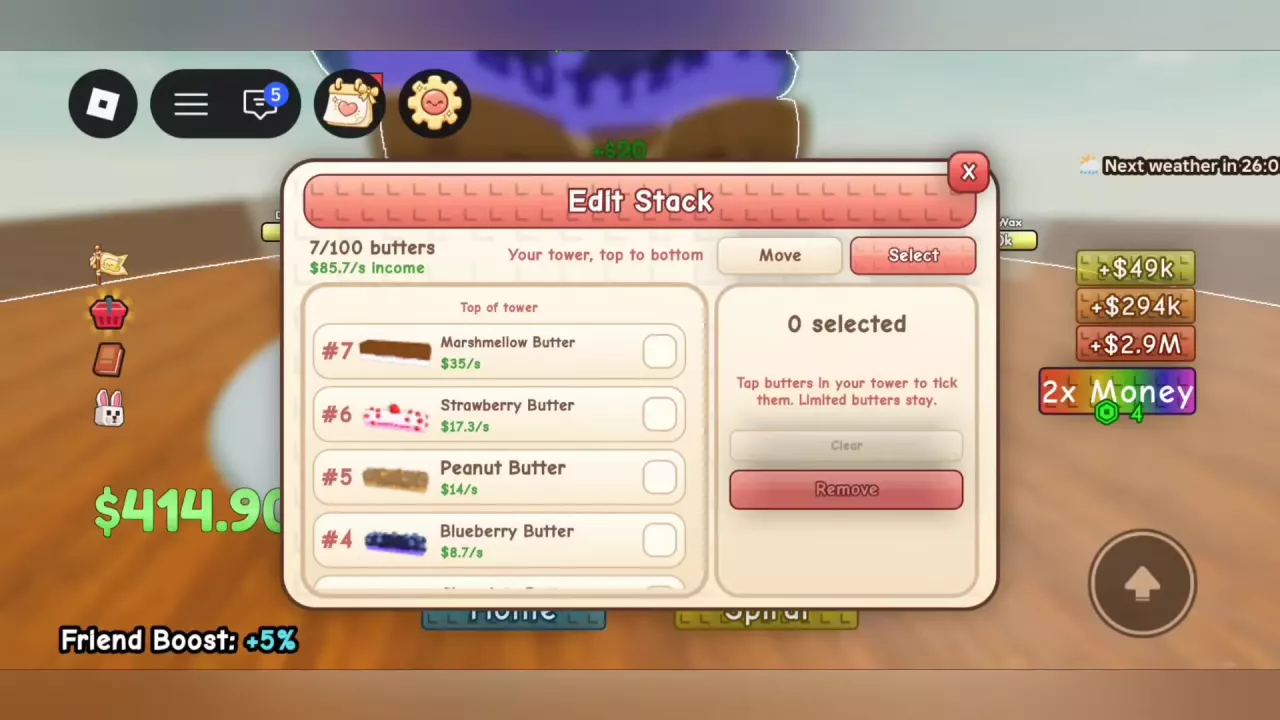
Select and Remove Stack Entries
Remove one butter
- Open Your Stack → Edit Stack.
- In Move mode, select the butter.
- Check the amount displayed beside Remove, then use that button to remove the selected entry.
The button’s amount is the removal offer for that selection. For example, a selected Salted Butter in a seven-butter stack had a Remove +$5 offer; a selected Mozzarella Butter in a 46-butter stack had a Remove +$500M offer. Use the amount on your selected entry when deciding whether to remove it rather than assuming it returns the purchase price.
Select multiple butters
- Switch to Select in Edit Stack.
- Tap the butter entries you want to mark; the editor tracks the selected count.
- Use Clear to reset the selection if you want to start over.
- Use Remove for the selected entries.
Limited butters stay in the stack under the editor’s removal rule. Clear only resets your selection.
For a butter you are still carrying, use the separate Sell control for held butters.
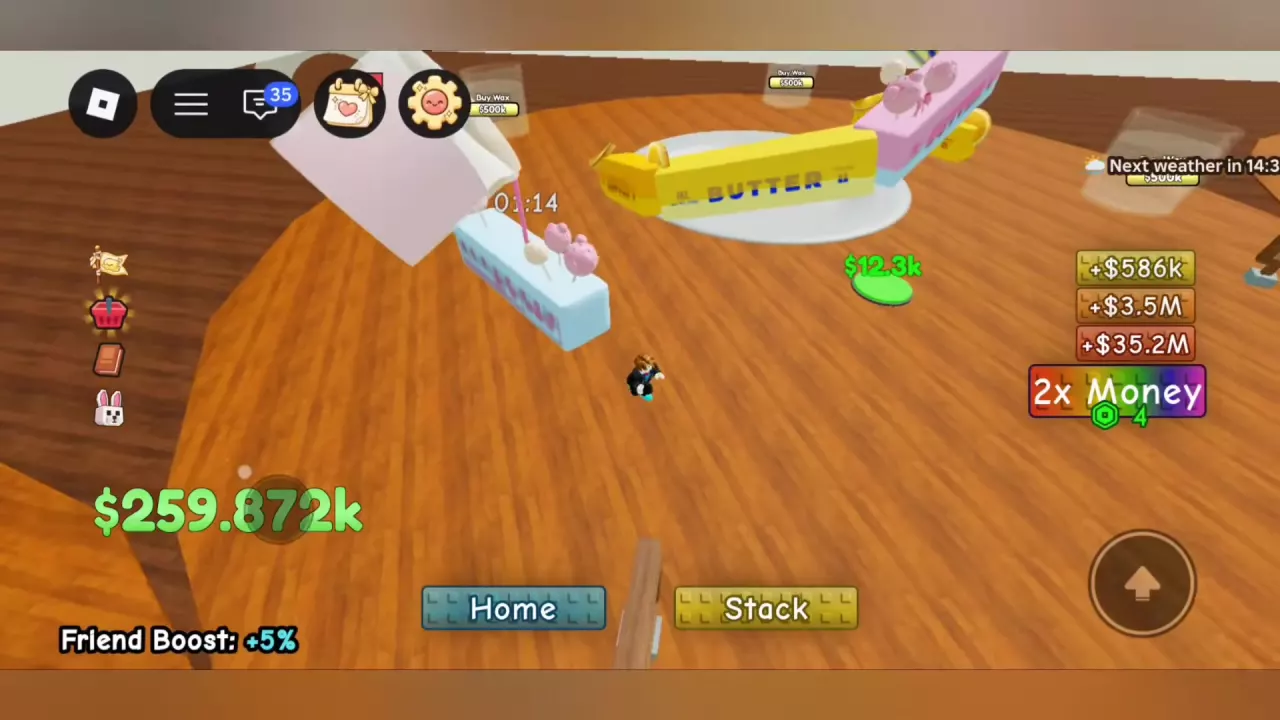
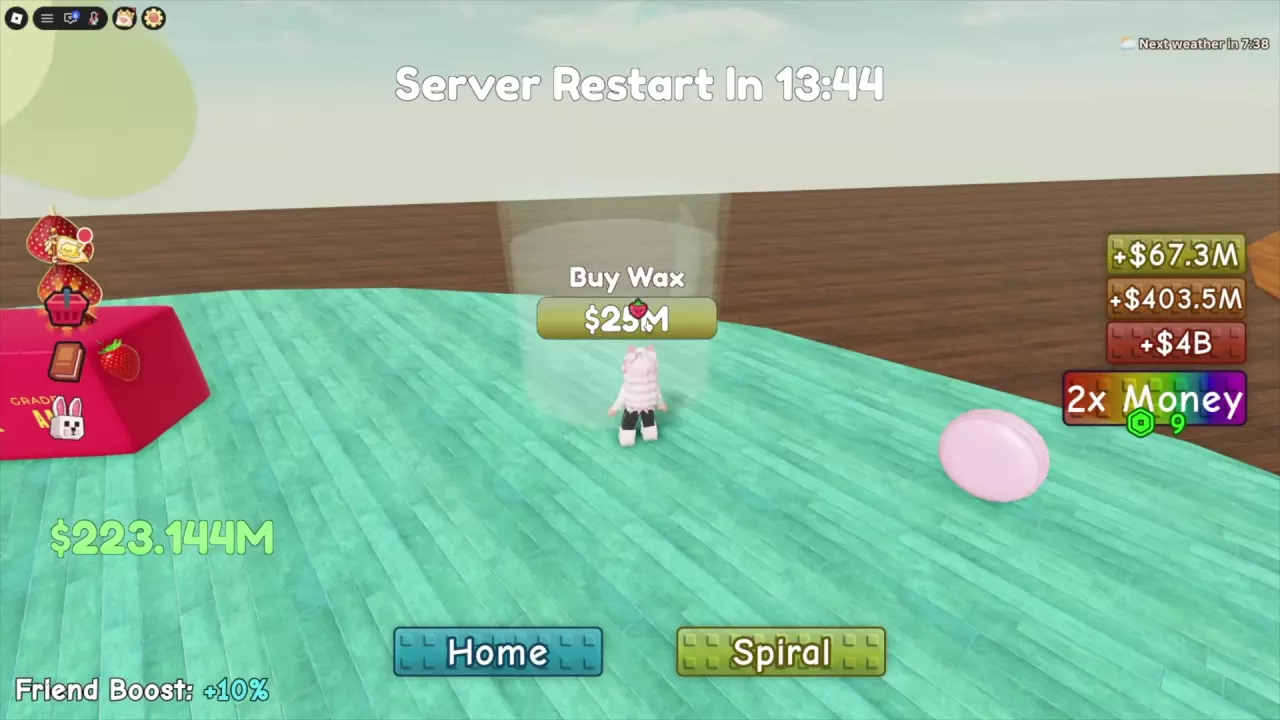
Switch Between Spiral and Stack
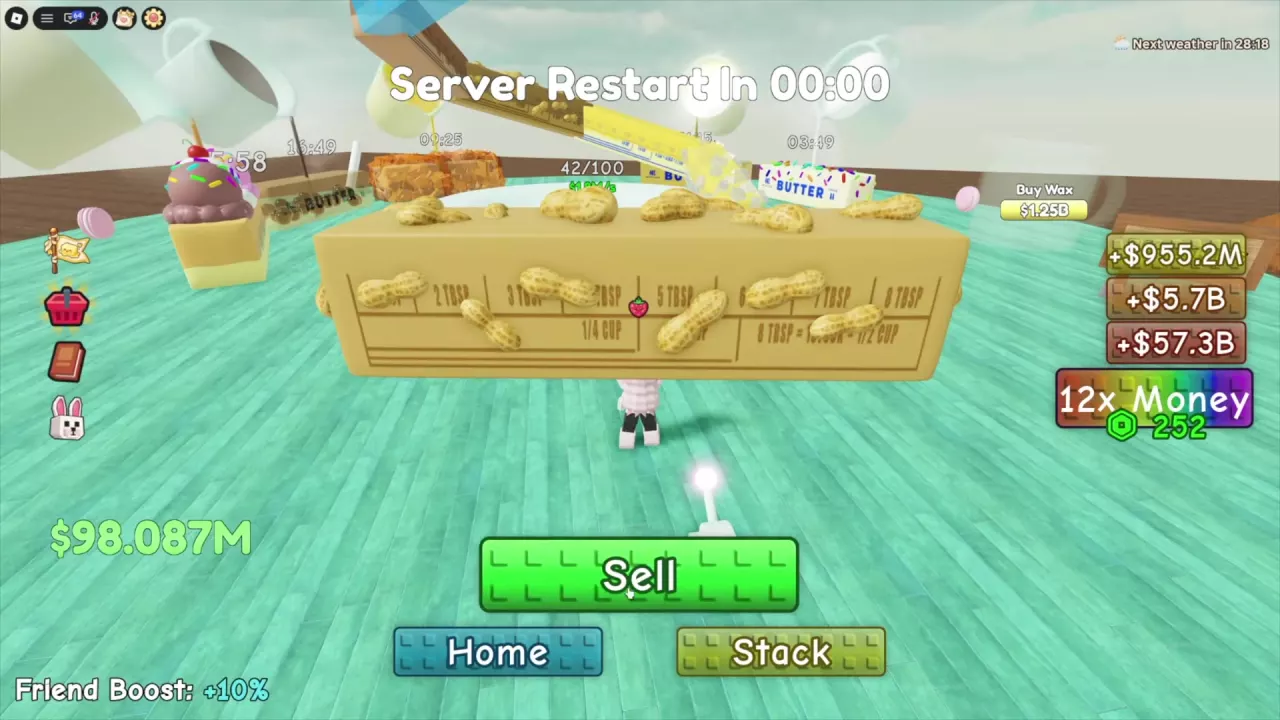
- With butters on your plate, choose Spiral on the bottom bar to spread the tower into a rising spiral path.
- Walk along the path to reach and step on different butters.
- Choose Stack to bring them back into a vertical tower.
The button names the arrangement you can switch to: a vertical tower offers Spiral, and a spiral path offers Stack.
Choose Spiral when you want to squish several different pieces along a walkable route. Choose Stack when you want a compact, vertical tower for display; tightly packed layers can be harder to climb. Switching keeps the same butters and their income configuration—it changes the physical arrangement.
For specific sounds, deformation, and particle effects to try along the route, see Butter Sounds and Squish Effects.